

Transport
The Transport contains 5 items.

1️⃣ Play/Pause button
This can be controlled with the space bar and also assigned to a MIDI hardware controller.
2️⃣ SMPTE time display
As we do not recommend extending the timeline beyond 60 minutes, Filmstro Pro only displays time in Minutes: Seconds: Frames.
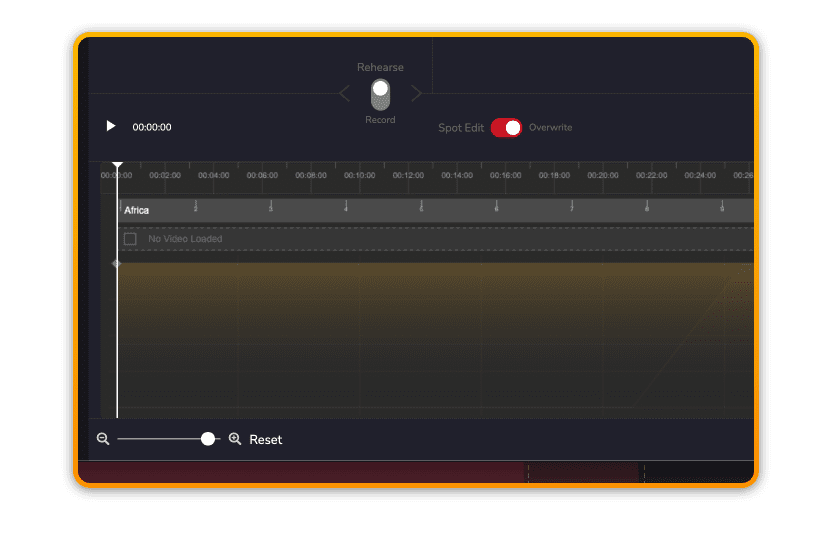
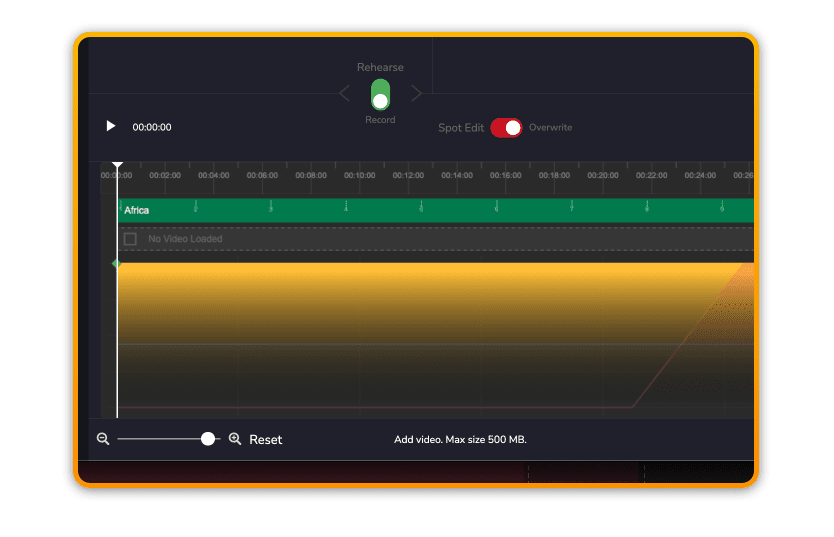
3️⃣ Rehearse/Record toggle
When in Rehearse mode any changes made to the Scoring Sliders will not affect the timeline.
When in Record mode any changes made to the Scoring Sliders will be included in the timeline.
4️⃣ Spot Edit/Overwrite toggle
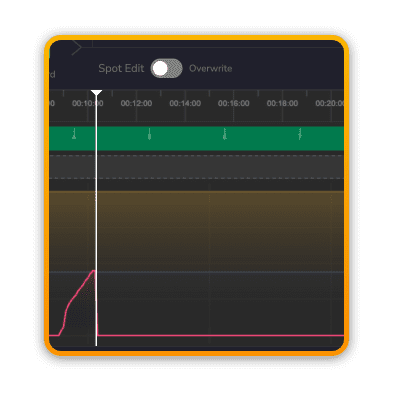
When in Spot Edit mode any Scoring Slider changes – while the playhead is moving – only record changes directly at the playhead (recording “on the spot”).
Once recording stops, the value at the playhead will snap back to any previously existing value.
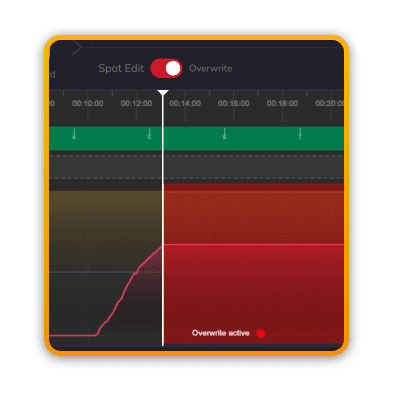
When in Overwrite mode any Scoring Slider changes made – while the playhead is moving – record changes directly at the playhead in addition to applying the changes to the remainder of the entire timeline from the playhead onwards (“overwriting” all previously created data).
Once recording stops, the value at the playhead remains at the Scoring Slider’s current setting.
?Pro Tip: You can also use Overwrite mode offline (e.g. when the playhead is not moving) but only when the playhead is at the very start of the timeline. This is useful for setting your own custom Template to begin with.
5️⃣ Momentum, Depth, Power radio buttons
You can toggle between Momentum, Depth and Power by using these buttons or the shortcut keys 1,2,3.
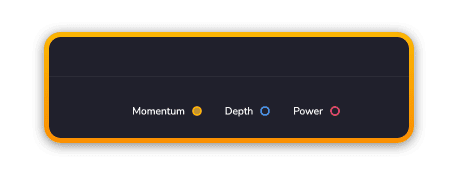
?By simply touching any one of the Scoring Sliders, the associated parameter will automatically switch to become the newly active parameter.