

Keyframes
Keyframes are what makes Filmstro Pro really shine. There are 2 types of keyframes.
(1) Standard Keyframes which are the colour of the active parameter to which they were added (e.g. yellow for Momentum) and (2) Special Keyframes which are green.
Special Keyframes
Special – protective – Keyframes are inserted every time you add a custom shape using the Pen Tool and are there to protect the custom shape you’ve created on either side.
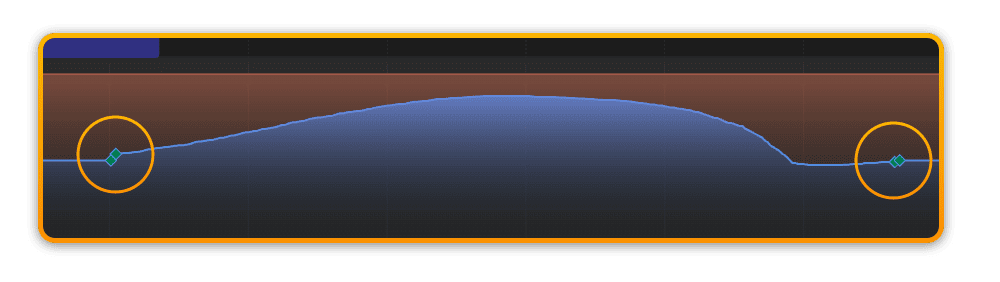
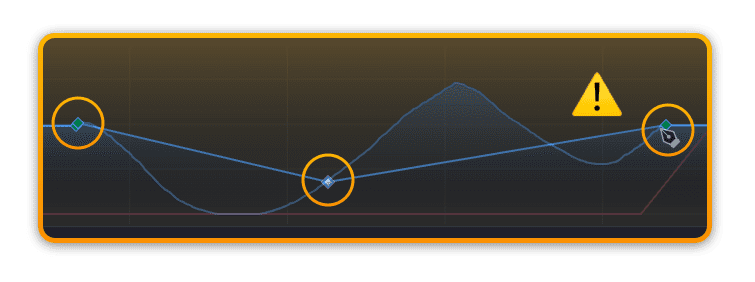
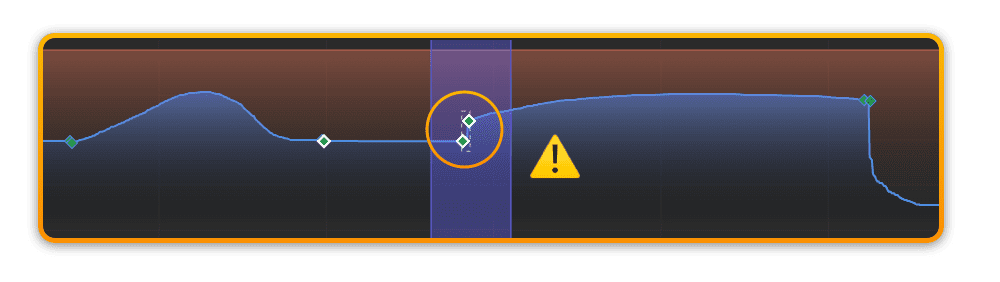
?If you add a keyframe into an area created with the Pen Tool, then the newly added Keyframe will be be connected with a linear interpolation to the existing Keyframes. If you want to maintain any custom Pen Tool data, it’s important not to add Keyframes into that section.
Below you can see an image of the original custom shape created with the Pen Tool, and what it then changed to after a Keyframe was added to that area.
Add standard keyframe(s)
To add one or more keyframes double click anywhere in the Timeline.
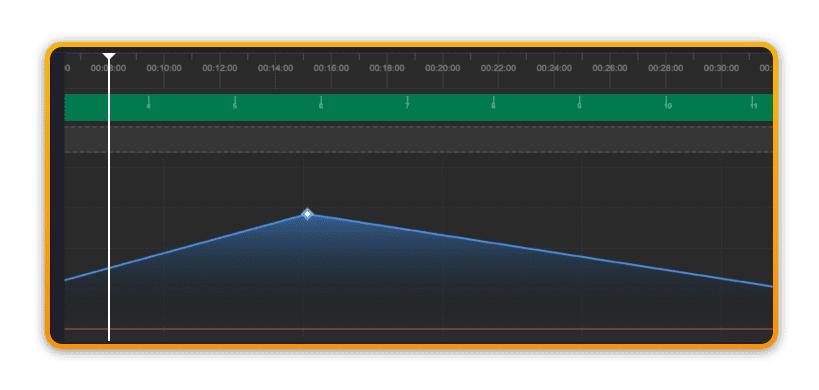
To add a keyframe at the current playhead position use the shortcut CMD+’ (Command & Apostrophe) or click the icon next to the Scoring Slider for which you wish to add a keyframe.
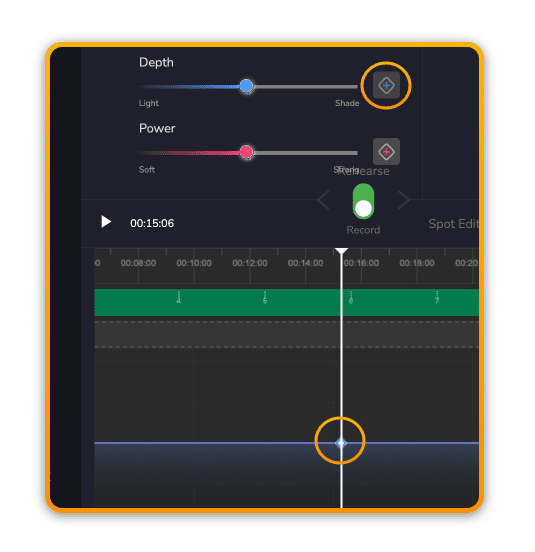
?Any new keyframe is automatically highlighted and connected to the relevant Scoring Slider, and so you can now move the corresponding Scoring Slider to quickly set the desired level.
Move keyframe(s)
To move one or more keyframes simply click the individual keyframe or into the Selection and move the keyframe(s) to your desired location. You can constrain the movement to the X or Y axis by holding SHIFT.
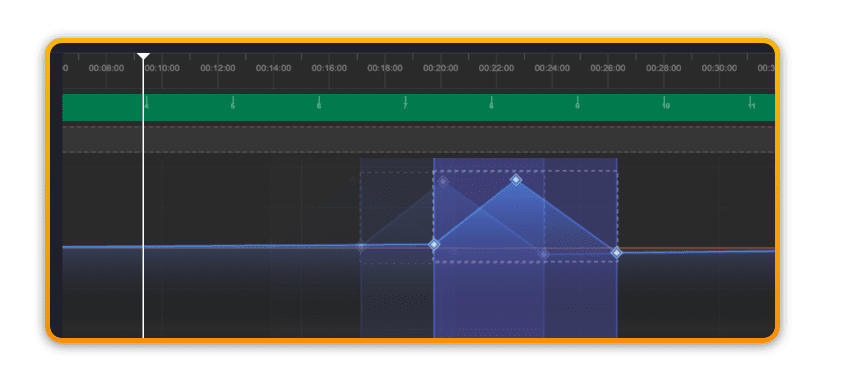
?Please note that special Keyframes cannot be moved if they are immediately adjacent to other special Keyframes. This is due to this action conflicting with the Pen Tool behaviour. In future we will change this so you will be able to move all Keyframes.
Delete keyframe(s)
Deleting keyframes can be done in a number of ways:
Use the Backspace key to delete individual keyframes or a selection of keyframes. Use CMD+A to select all Keyframes for the currently active parameter.
Place the playhead at the very start of the timeline (use the Return key) and then move the Scoring Sliders with Overwrite mode selected.
Right-click into the timeline and select a new Template.
?This will delete ALL keyframes across all 3 parameters.